.svg)
.svg)

.svg)
.svg)





Our Apps Have Driven
5X AOV | 2X Conversions | $30M+ Additional Revenue
5X AOV | 2X Conversions | $30M+ Additional Revenue
.svg)


5.0 (3000+ Reviews)


Shopify Apps





.svg)

Volume discounts (also called quantity breaks or tiered pricing) let you reward customers for buying more by offering reduced prices at higher quantities. They’re one of the simplest ways to boost AOV, sell through inventory faster, and incentivize wholesale or bulk buyers.
In this guide, you’ll learn every way to set up volume discounts on Shopify; using native tools and the most reliable apps. Each method includes a short explanation, step-by-step instructions, and real examples so you can choose the right setup for your store.
A volume discount is a pricing incentive that reduces the cost per item when a customer purchases more units. Example:
Volume discounts encourage customers to increase their order size, improving your overall conversion rate and average order value.
Shopify’s built-in Automatic Discounts tool lets you create simple quantity-based discounts. This works best for stores with a few straightforward tiers but has limitations: only one automatic discount can apply at a time, and there’s limited targeting or design flexibility.
Here is a detailed step-by-step guide for setting up volume discounts directly within you Shopify admin panel using Shopify Native discounts:
1. Start by logging into your Shopify admin panel. From the dashboard, locate and click on the Discounts tab in the left-hand menu. This is where you will manage all store promotions.
2. Click the Create discount button located on the Discounts page.
3. Choose the type of discount you want to offer to your customers. In this example, let’s choose “Amount off products”. This lets you offer discounts to specific items based on their quantity.
4. Set Up Discount Method & Title: Under "Method," you must decide how the discount will be applied. You have two choices here.
Title: Give your discount a clear and descriptive title, such as "Buy 3 & Get 10% Off." This title is visible to customers in their cart and at checkout, so it should be easy to understand.
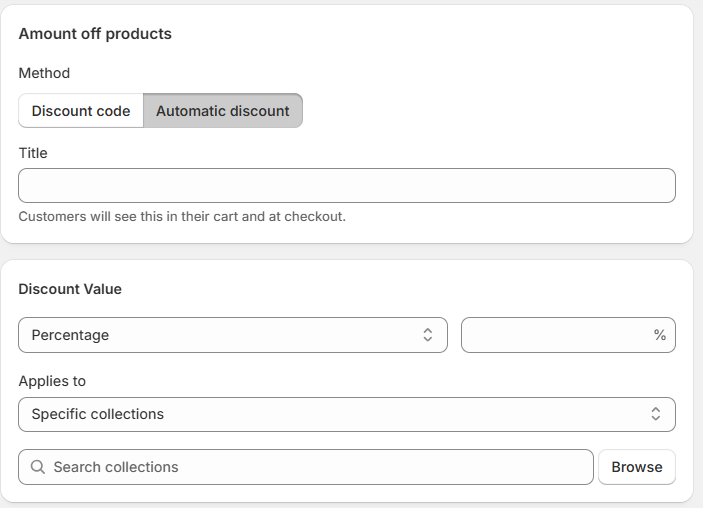
5. Set the Discount Value
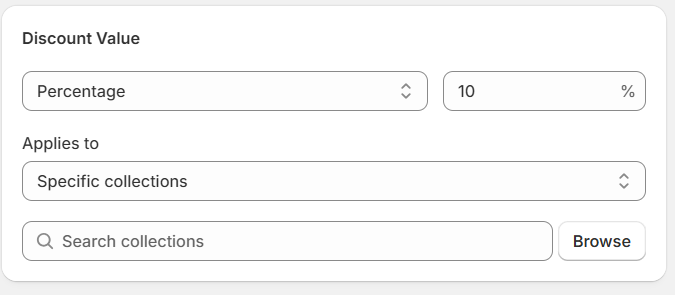
6. Define Customer Eligibility: Under the "Customer eligibility" section, you can control who can take advantage of this offer.
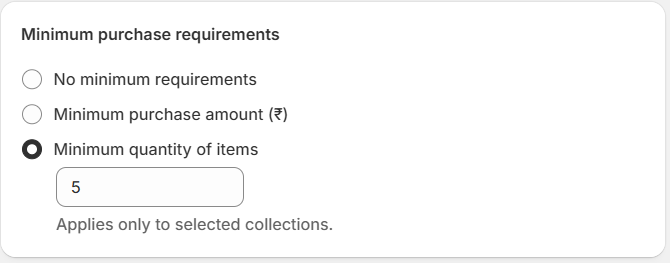
7. Establish Minimum Purchase Requirements
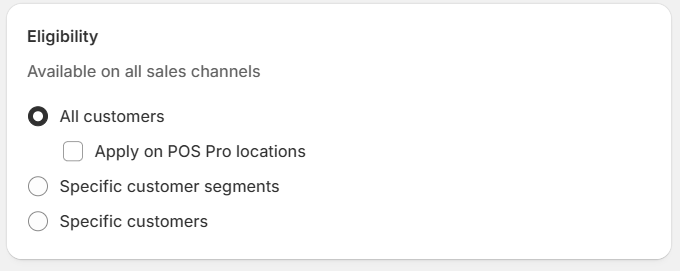
In the "Minimum requirements" section, you can choose one of the following conditions:
8. Manage Discount Combinations
The "Combinations" section lets you decide if this discount can be used alongside other promotions, such as order or shipping discounts.
9. Define the Active Dates
Specify the promotion's duration by setting a "Start date" and an optional "End date" under the "Active dates" sectio
10. Save Your Discount
Once you have configured all the settings, click "Save" to save the promotion.
Shopify's native discount system has certain limitations that you should be aware of when planning promotions:
Shopify restricts stores to a maximum of 25 active discounts at any given time. While this may work for smaller shops, it often becomes a roadblock for larger businesses - especially during peak sales periods when multiple promotions are running across different collections or campaigns.
Shopify does support discount stacking in some cases, but the rules are limited. Combining multiple order-level discounts can be tricky, and not all codes work together. For example, you can use only up to 5 product or order codes, plus 1 shipping discount, per order.
Shopify's discount engine does not provide automatic visual cues or tiered pricing displays on product pages, which can reduce customer awareness of volume discount opportunities.
The native discount engine offers only basic customer eligibility rules, such as targeting specific customer segments or locations. It lacks the capability for more advanced conditional logic. For example, you cannot create a discount that applies only to customers with a specific lifetime spend
While Shopify native discounts are great, as we saw, they come with limitations. If you want to set up a volume discount campaign, where you have full control over targeting, set up, rules, and the front-end, a volume discount app is the way to go.
There are many volume discounts on Shopify. One volume discount app I would highly recommend is Kite: Discount & Free Gift. This app allows you to create advanced discount strategies, such as tiered discounts, where customers unlock higher savings when they buy more.
Here is a step-by-step guide on how to set up volume discounts on Shopify using the Kite: Discount & Free Gift app:
Once installed, you’ll see Kite Discounts in your Shopify dashboard.

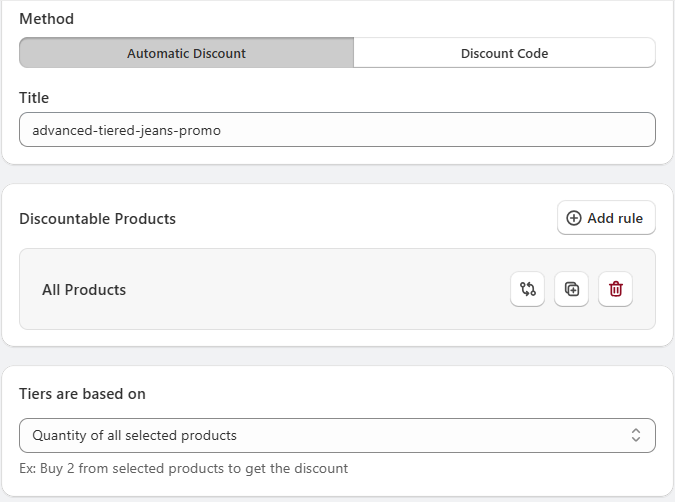
This is where you create the escalating discount levels that encourage customers to buy more.
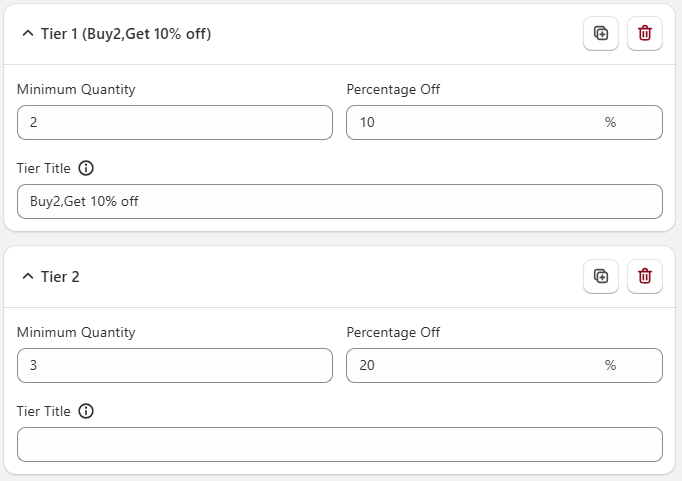
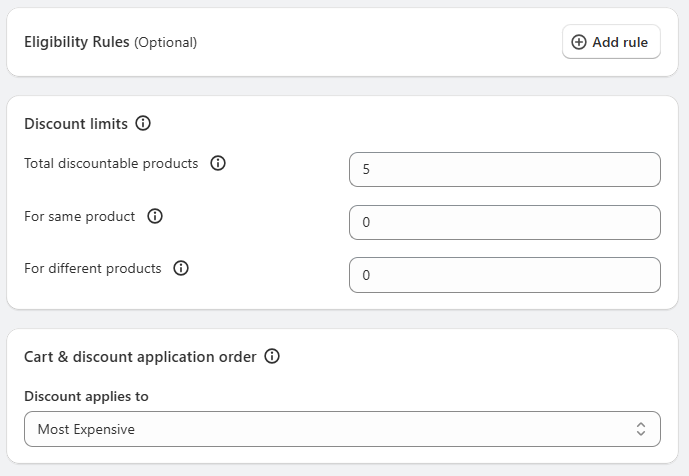
Eligibility Rules: Add conditions to limit who can receive the offer. For example, you can restrict the discount to customers with a specific tag (like "VIP").
Limit Discounted Items: You can enter a number to cap the discount to a specific quantity of items in the cart. If left blank, the discount will apply to all eligible items.
Discount Application Logic: If you set a cap on the number of discounted items, you can specify whether the discount is applied to the least expensive or most expensive eligible products in the cart.
After configuring all the settings, it's crucial to ensure the discount works as expected.
Offering volume discounts within Shopify checkout is a proven strategy to increase your AOV and move inventory faster. To streamline this process and create a seamless customer experience, you can rely on powerful Shopify checkout apps like Checkout Wizard. This app makes it simple to set up volume discounts right in your Shopify checkout.
Let's see how you can set up volume discounts using the Checkout Wizard.
Head over to the Shopify App Store, search for Checkout Wizard, and install it.
Inside the app, navigate to the dashboard and click on Create Extension. Under the list of available extensions, find Volume Discount and click Create.
This is where you define the core aspects of your discount:
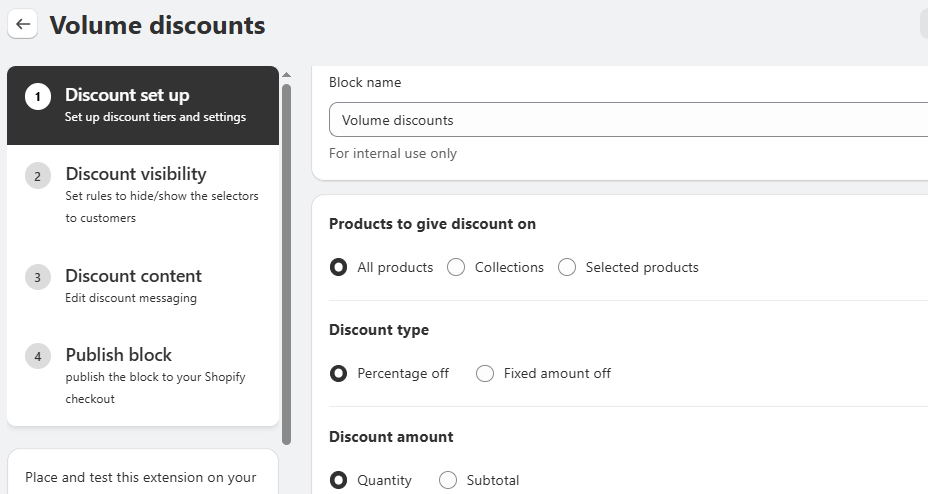
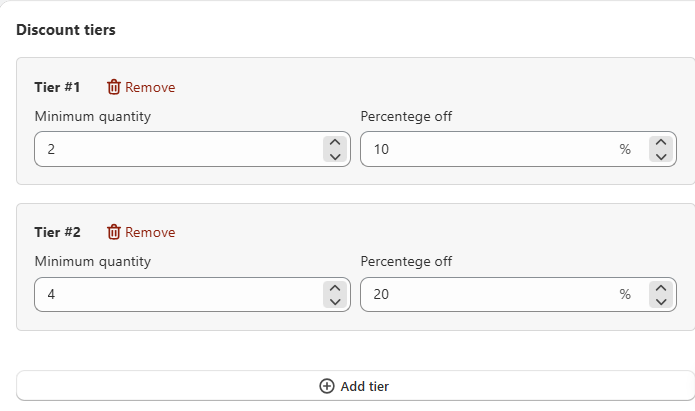
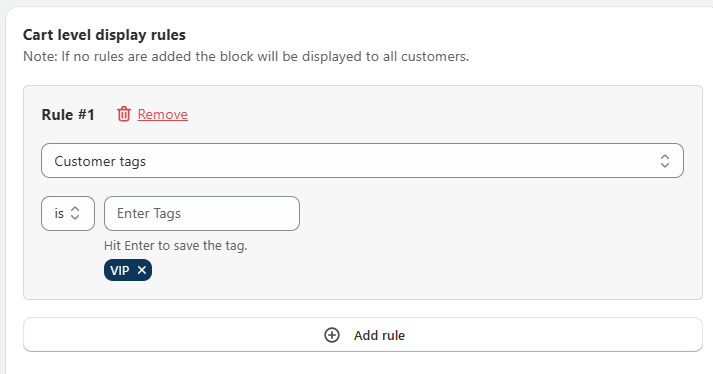
You can set specific rules to show or hide the discount block. For instance, you could display the offer only to customers with a certain tag or those who have specific items in their cart. If no rules are added, the block will be visible to all customers by default.
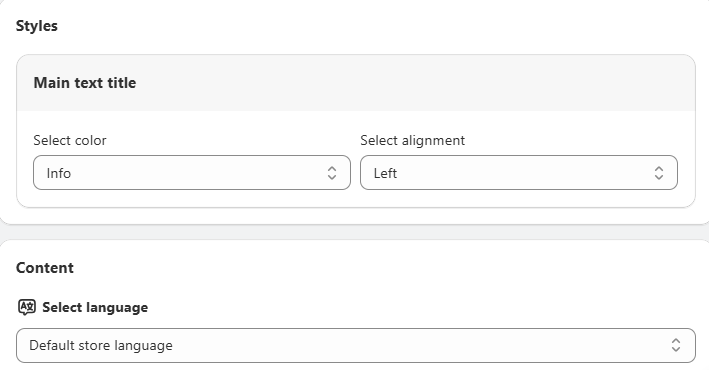
Here, you can customize the messaging and appearance of your discount offer to match your brand's voice and style. You can also select different languages to provide a localized experience for international customers.
Once everything is configured, click Publish to activate your volume discount block at checkout. Run a quick test order to make sure everything works as intended.
Quantity breaks are a type of tiered pricing strategy where customers receive increasing discounts as they purchase more units of a product. This approach not only encourages bulk buying but also helps boost your AOV and overall sales.
While Shopify does offer a basic discount system, it doesn’t provide advanced features for quantity breaks. For instance, you won’t be able to set up multiple quantity breaks under a single discount. So, to set up sophisticated Shopify quantity breaks, you can leverage Shopify apps like Easy Bundle Builder & Quantity Break.
Here is a detailed guide to creating quantity breaks using the Easy Bundle Builder app.
Open the Shopify App Store, find Easy Bundle Builder & Quantity Break, and install it. Once installed, it’s available inside your Shopify admin.
On the main dashboard of the app, find and click the "Create bundle offer" button.
You will be presented with different types of bundles; for this purpose, select "Quantity Breaks" and click Create.
After choosing Quantity Breaks, you’ll land on the “Choose a Template" page. The Easy Bundle Builder app gives you multiple templates to pick from. You can preview each option and tweak the color scheme so it fits naturally with your store’s look and feel.
After selecting a template, you'll be taken to the main setup page. The first step is to add the products to which you want to apply quantity breaks. You can choose to make the offer visible on specific products, specific collections, all products except for selected ones, or all products in your store.
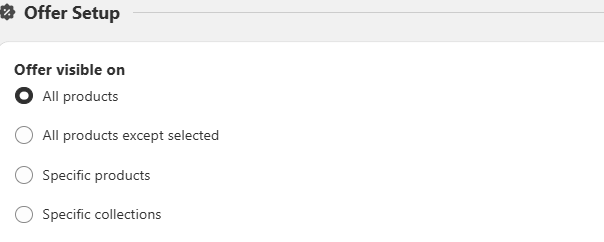
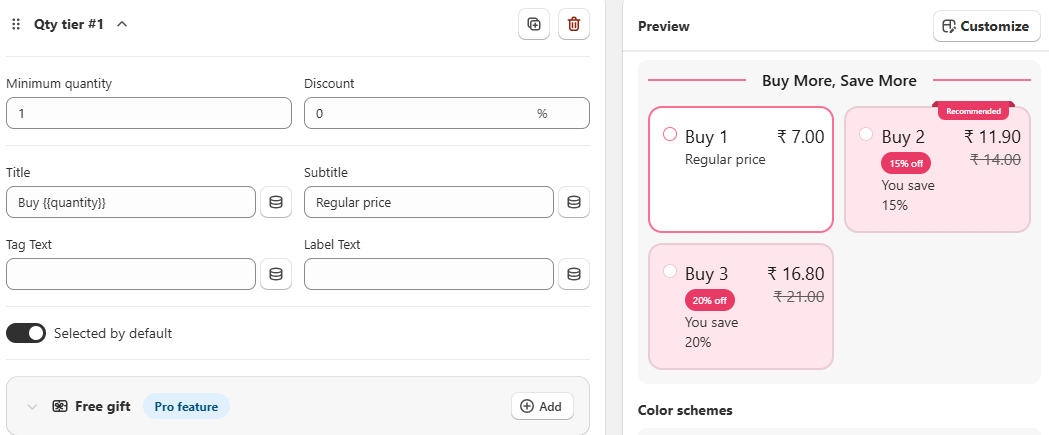
Enter an Offer Title. This is the text that will appear as the heading for your quantity break widget.
The app provides several advanced settings for fine-tuning. You can customize the label for any free gifts, choose to show a "compare at price" to highlight the savings, and display out-of-stock options.

Once you're done with the whole setup, click “Save” to save the quantity break offer.
Here are a few reasons why setting up Shopify volume discounts can be a smart move for your store:
Let’s take a look at some of the widely used Shopify quantity discounts:
Discounts activate when a customer meets a minimum quantity or cart value.
Example
Shoppers get better deals as they buy more units, encouraging bulk purchases. In Shopify, tiered pricing can be set up as follows:
Rewards based on total purchases over time, not just per order.
Example: Spend ₹40,000 in a quarter → Get 15% off all orders next month
Discounts based on total spend, not quantity.
Example:
To wrap it up, learning how to set up volume discounts on Shopify is one of the smartest ways to drive sales and lift your AOV. By offering customers better deals as they buy more, you give them a strong reason to increase their order size.
You can create simple volume discounts directly in Shopify or unlock more advanced features with Shopify apps like Easy Bundle Builder, Kite Discounts & Free Gift, or Checkout Wizard to maximize sales. Remember, don’t just limit yourself to regular volume discounts. Explore quantity breaks or even volume discounts at checkout. All the best!


.avif)